GTA PC Controls: Complete GTA 5 Keyboard and Mouse Guide (2026)

Grand Theft Auto V offers an expansive open world where players can explore Los Santos, complete challenging missions, participate in high-speed pursuits, and experience countless activities. Learning GTA PC controls is essential for enjoying these experiences without struggling to remember which keys perform specific actions. Whether you are starting your first playthrough or returning to GTA Online, understanding the keyboard and mouse layout can make movement, combat, driving, and exploration considerably more comfortable.
The default control scheme provides a foundation for almost everything you do in the game, from running through city streets to operating aircraft and specialized vehicles. However, different situations can require different commands, and customized settings may change the standard layout. This comprehensive guide explains the most important GTA 5 keyboard controls, vehicle commands, combat shortcuts, aircraft handling, and customization options so you can build confidence and improve your gameplay throughout 2026.
GTA 5 PC Controls: Complete Keyboard and Mouse List
The standard keyboard layout uses WASD for character movement, while the mouse handles aiming, shooting, and camera movement. Other keys provide quick access to common actions, including sprinting, jumping, entering vehicles, switching weapons, and interacting with the game world. Learning these commands first helps you react faster during missions because you will spend less time looking at the keyboard and more time concentrating on the action happening around you.
The following table summarizes commonly used default GTA PC controls. Exact bindings may differ depending on your game edition, customized settings, or the activity you are performing. If a command does not work as expected, open the game’s settings and check the assigned key before assuming that your installation is experiencing a problem.
| Action | Default Key |
| Move forward | W |
| Move backward | S |
| Move left | A |
| Move right | D |
| Sprint | Left Shift |
| Jump or climb | Spacebar |
| Enter or exit vehicle | F |
| Take cover | Q |
| Reload weapon | R |
| Aim | Right Mouse Button |
| Fire weapon | Left Mouse Button |
| Open weapon wheel | Tab |
| Special ability | Caps Lock |
| Change camera view | V |
| Look behind | C |
| Open Interaction Menu | M |
| Pause game | Esc |
These shortcuts cover many of the actions used during regular gameplay. Some controls, such as the weapon wheel or Interaction Menu, have additional options that become useful as you progress. For the most accurate layout, always check the active bindings displayed in your version of GTA V.
On-Foot Movement Controls in GTA 5
Moving around Los Santos becomes much easier when you understand the basic movement keys. Press W to move forward, S to move backward, A to move left, and D to move right. Left Shift allows your character to sprint, which is useful when escaping dangerous situations, reaching mission objectives, or moving quickly between locations. Spacebar handles jumping and climbing over suitable obstacles, helping you navigate streets, buildings, and uneven terrain more efficiently.
Additional movement commands help you stay aware of your surroundings and avoid unnecessary damage. Press Q to take cover near suitable objects, and use Left Ctrl for stealth movement when that binding is active in your settings. Press C to look behind while moving, allowing you to monitor nearby threats without completely changing direction. Practice combining movement with camera adjustments in quiet areas before entering demanding missions, where quick reactions and awareness can make a significant difference.
GTA 5 PC Combat and Weapon Controls
Combat in GTA V relies on coordination between the keyboard and mouse, particularly when you need to aim accurately while moving between cover positions. Hold the Right Mouse Button to aim and press the Left Mouse Button to fire your weapon. Press R to reload when ammunition runs low, and use Tab to open the weapon wheel. The wheel lets you select available weapons and equipment, making it easier to prepare for different encounters without cycling through every item individually.
Improving your shooting accuracy requires practice rather than simply pressing buttons faster. Adjust mouse sensitivity until aiming feels controlled, and avoid making sudden movements when targeting distant enemies. Use cover whenever possible, watch your ammunition, and choose weapons appropriate for the situation. These GTA PC controls become more natural as you practice them during less challenging encounters before moving into difficult missions, survival activities, or competitive GTA Online sessions where effective aiming and quick weapon selection are especially important.
GTA PC Vehicle Controls: Cars, Bikes, and Boats
Vehicle handling introduces another set of commands that players should learn early. W generally accelerates standard cars, S brakes or reverses, and A and D steer left and right. Spacebar commonly activates the handbrake, which can help with tight turns and controlled slides. Press F to enter or exit a vehicle, while V changes the camera view. Depending on the vehicle and current bindings, additional commands control headlights, horns, radio functions, and other features available during driving.
Different vehicles require different approaches even when they share some basic controls. Cars respond to steering and braking, motorcycles require careful balance, and boats need smoother adjustments because they behave differently on water. Reduce your speed before sharp corners, avoid sudden steering movements at high speeds, and use camera changes when visibility becomes difficult. Practicing these GTA PC controls in open areas helps you develop better handling before attempting challenging races, police pursuits, and missions involving narrow roads or heavy traffic.
GTA 5 PC Aircraft Controls: How to Fly Planes and Helicopters
Aircraft require more attention than ordinary vehicles because players must manage speed, direction, altitude, and stability. W and S commonly control throttle, while other keys manage directional movement depending on the aircraft and your configured bindings. Additional commands may operate landing gear, change the camera view, or activate aircraft weapons. Before taking off, review the aircraft-specific controls displayed in the settings menu so you understand the commands available in your version of the game.
Planes and helicopters have different handling characteristics, so each type deserves separate practice. Planes generally require enough speed for takeoff and careful control during turns and landings, while helicopters need balanced adjustments to maintain a stable hover. Avoid holding directional keys for too long when making corrections, because excessive input can make an aircraft difficult to control. Practice gentle turns, gradual altitude changes, and safe landings before attempting flight-school challenges or missions that require accurate flying under pressure.
GTA PC Controls for Submarines and Special Vehicles
GTA V includes specialized transportation options that behave differently from ordinary cars, motorcycles, and boats. Submarines, weaponized vehicles, and other unique machines may provide additional commands for movement, diving, targeting, or operating equipment. Although familiar driving keys can still be useful, they may not cover every function available in these vehicles. Learning the controls before beginning a mission can prevent confusion when you need to operate unfamiliar equipment under time pressure.
The easiest approach is to check on-screen instructions and review the relevant vehicle bindings before using a specialized vehicle. Test unfamiliar commands in a safe location whenever possible, and learn how the vehicle responds to small adjustments. This method helps you understand its handling without interrupting mission progress or wasting time trying random keys. As you become familiar with different vehicle types, you will find it easier to switch between ordinary transportation and specialized equipment during exploration, missions, and GTA Online activities.
GTA Online PC Controls and the Interaction Menu
GTA Online shares many of the keyboard and mouse commands used in Story Mode, so players can apply familiar movement, combat, and driving skills when entering multiplayer sessions. However, online activities introduce additional menus, player interactions, and mission-specific actions that may require more attention. Learning the common controls before joining a heist, race, or cooperative activity can help you respond quickly and avoid delaying teammates while searching for the right command.
The Interaction Menu is particularly useful because it provides access to supported player, vehicle, and gameplay options. Press M by default to open the menu, then navigate the available choices according to your current situation. Menu contents can vary depending on the game edition, activity, and available features. Spend a few minutes exploring the menu outside demanding missions so you can locate important options comfortably. Understanding these GTA PC controls helps you manage multiplayer activities without losing focus on driving, combat, or teamwork.
How to Change GTA PC Controls and Customize Key Bindings
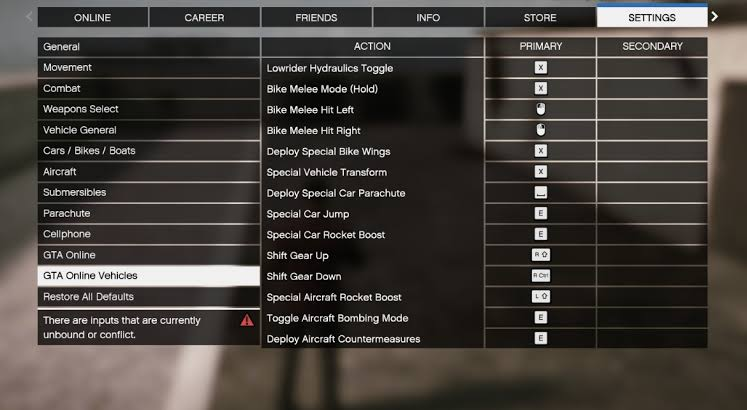
The default layout works well for many players, but it may not feel comfortable for everyone. GTA V allows you to customize many keyboard and mouse bindings through its settings. Open the pause menu, select Settings, and locate the keyboard or key-binding options. From there, review the actions you want to change and assign different keys where supported. Check for conflicting assignments because using the same key for incompatible actions can cause unexpected behavior during gameplay.
A comfortable configuration keeps frequently used commands within easy reach and makes it easier to perform multiple actions quickly. You might prefer a different layout for movement or adjust mouse sensitivity to improve aiming accuracy. Change a small number of settings at a time, then test each change before making further adjustments. If the new configuration causes problems, return to the settings menu and restore the original bindings where that option is available. Customization should make the game more comfortable, not create unnecessary complexity.
GTA 5 PC Controller vs. Keyboard and Mouse
Keyboard and mouse controls offer convenient access to numerous shortcuts and allow players to aim with direct mouse movement. This setup can be especially appealing to players who prefer manual aiming, quick weapon selection, and customizable key bindings. Once the layout becomes familiar, many actions can be performed quickly without navigating several menus. Players who spend most of their time in combat or enjoy precise mouse aiming may appreciate the flexibility of this control method.
A compatible controller provides a different experience, particularly when driving, flying, and making gradual directional adjustments. Analog sticks and triggers allow more controlled movement than the keyboard’s simple directional inputs, which some players find useful for vehicle handling. Neither input method is automatically better for every activity, and personal preference plays an important role. GTA V supports compatible controllers on PC, so you can experiment with both options and select the setup that feels most comfortable for your favorite missions and activities.
Common GTA PC Controls Problems and Fixes
Sometimes a keyboard key stops responding, the mouse behaves unexpectedly, or a customized layout creates conflicts between actions. Begin by checking that your keyboard and mouse are connected properly and that the game is using the expected control configuration. If the problem started after changing a setting, review the recent adjustments first. A key may have been reassigned, or the active layout may differ from the one you are trying to use.
If the issue continues, restart the game and check whether the same problem appears in Story Mode and GTA Online. You can also verify the game files through your launcher if simpler troubleshooting steps do not help. Avoid changing multiple settings simultaneously because doing so makes it harder to identify the source of the problem. Testing one possible fix at a time is usually more effective and helps you restore a consistent setup without creating additional control issues.
Best GTA PC Controls Settings for Beginners
Beginners should start with the default layout and learn the most frequently used commands before making extensive changes. Focus on movement, sprinting, jumping, aiming, shooting, and entering vehicles. Once these actions become familiar, begin practicing driving and flying separately. Learning the controls gradually reduces confusion and allows you to concentrate on missions rather than constantly checking which key performs each action.
Mouse sensitivity deserves particular attention because it directly affects how comfortable aiming feels. A setting that is too high can make small movements difficult to control, while a setting that is too low may make it harder to follow moving targets. Find a comfortable starting point and make gradual adjustments. Keep important keys within easy reach, test changes during normal gameplay, and prioritize consistency over copying another player’s configuration. The best setup is one that feels natural and supports your preferred style of play.
GTA PC Controls Quick Reference Chart
A quick reference chart is useful when you forget a command during a mission or need to remember an action after taking a break from the game. Instead of trying to memorize every available key at once, focus on a small group of commands that you use regularly. Movement, aiming, shooting, reloading, vehicle entry, and camera changes are practical starting points for most players exploring Los Santos.
| Gameplay Category | Essential Controls |
| Movement | W, A, S, D |
| Sprinting | Left Shift |
| Jumping or climbing | Spacebar |
| Entering or exiting vehicles | F |
| Aiming | Right Mouse Button |
| Shooting | Left Mouse Button |
| Reloading | R |
| Weapon wheel | Tab |
| Taking cover | Q |
| Driving | W, A, S, D |
| Handbrake | Spacebar |
| Camera view | V |
| Interaction Menu | M |
| Pause menu | Esc |
This chart covers commonly used default commands rather than every possible action in GTA V. Aircraft, specialized vehicles, menus, and individual activities may require additional inputs. Your own settings may also differ if you have customized the keyboard layout. For accurate information, use the in-game control settings to confirm the bindings currently assigned to your installation.
Conclusion
Learning GTA PC controls makes Grand Theft Auto V easier to navigate and more enjoyable across different activities. Understanding the keyboard and mouse layout helps you move through Los Santos, handle combat situations, drive vehicles, operate aircraft, and participate in GTA Online with greater confidence. Rather than attempting to memorize every command immediately, begin with essential actions and gradually learn the more specialized controls as you gain experience.
Customization can further improve your gameplay when the default layout does not suit your preferences. Review the in-game settings, adjust uncomfortable bindings carefully, and practice unfamiliar commands before entering demanding missions. Keep the quick reference chart available until the most important keys become familiar. With regular practice and a comfortable setup, you can spend less time searching for commands and more time enjoying the activities, challenges, and open-world freedom that make GTA V popular.
Frequently Asked Questions
What are the default GTA PC controls?
WASD controls movement, Left Shift sprints, Spacebar jumps, F enters or exits vehicles, and the mouse handles aiming and shooting.
What key is used to sprint in GTA 5 on PC?
Press Left Shift to sprint when your character is on foot and the default keyboard configuration is active.
How do you enter a vehicle in GTA 5 on PC?
Press F near a suitable vehicle to enter it or exit it when seated inside.
How do you aim and shoot in GTA 5 on PC?
Hold the Right Mouse Button to aim and press the Left Mouse Button to fire your weapon.
How do you change GTA 5 PC controls?
Open the pause menu, go to Settings, and locate the keyboard or key-binding options to customize supported controls.
You May Also Read: Fastest Car in GTA Online